Explaining a repair to your customer in plain words
Each service on an estimate can carry three short parts — what you found, why it matters, and what waiting means — drafted for you and sent only after you approve them.
For service advisor, owner, manager · checked against the product on 2026-11-03
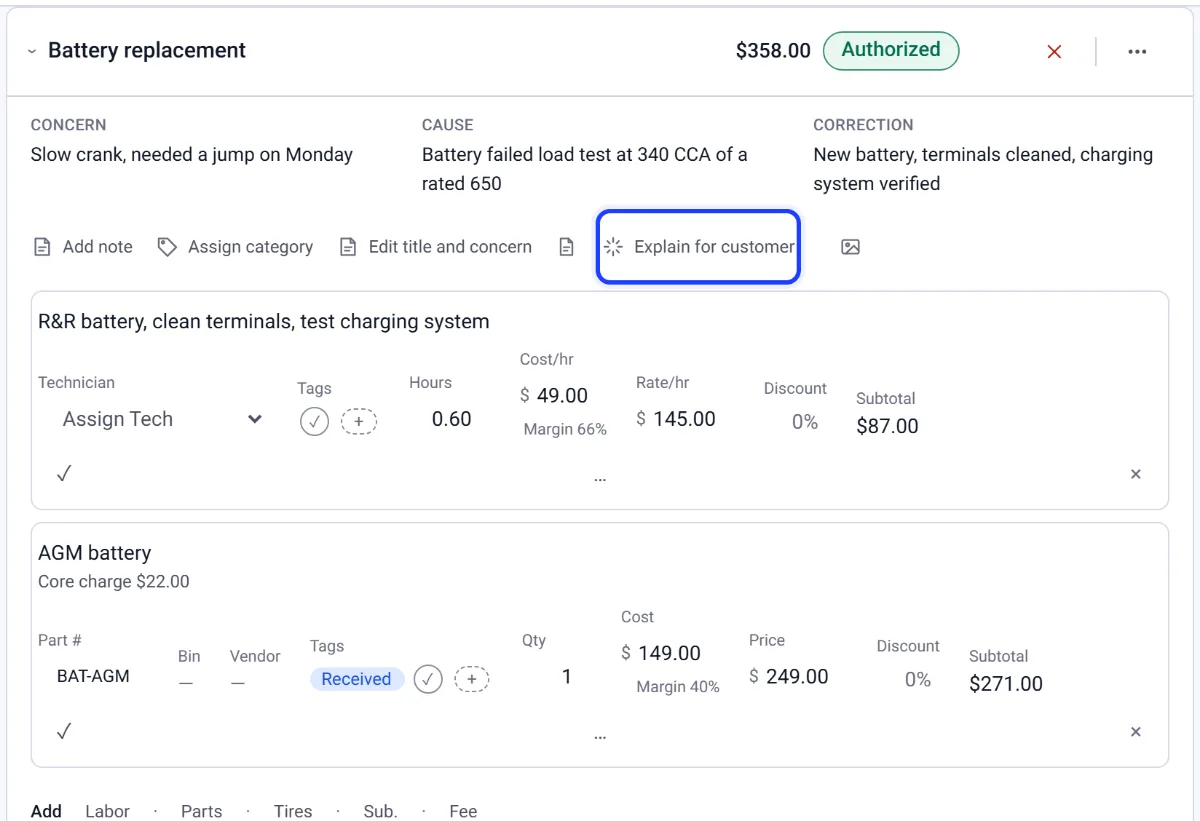
Customers approve what they understand. On every service card, in the row of links above the labor and parts, there is Explain for customer. It opens three boxes: What we found, Why it matters and If you wait. Each one is one or two short sentences in everyday words.
The draft, and who writes it
Step 1: Open Explain for customer
On the service, press Explain for customer. A draft is written for you to read.
Step 2: Read it and change any words
Every part is yours to edit. Nothing goes to the customer yet.
Step 3: Approve it
Press Approve for customer, or Discard. Customers only see it when explanations are on in Estimate & invoice look.
Opening it asks for a draft. With an AI service connected, the assistant writes from this service only: its title, the concern, cause and correction, the labor and part names, the inspection finding linked to it and its colour, and the car's year, make and model. It never sees the customer's name, their contact details, the VIN, the plate, any price, or any other service or order. It is told not to add dangers the finding does not name, not to mention money, and not to sell. A draft that names an amount is thrown away.
The line above the boxes says who wrote it: Drafted by the assistant. Read it and change anything before you approve. or Drafted from your notes on this service. Read it and change anything before you approve.
Nothing reaches the customer until you approve
Step 1: Read it
Change any word. What you approve is your words, whoever wrote the first draft.
Step 2: Approve it
Press Approve for customer. The link on the card then reads Explanation with approved beside it. All three parts are needed, and an amount of money is refused — the estimate shows the price.
Step 3: Or throw it away
Discard puts the boxes back and closes them. A draft is never saved anywhere, so there is nothing to clean up.
Once approved you can change it and approve again, press Draft again for a fresh draft, or press Remove explanation.
What the customer sees
The next estimate you send carries the approved words under that service, with the service's own photos as before. On the customer's estimate page and the estimate PDF they read What we found, Why it matters and If you wait in place of the technician's cause. What they told you, what you would do, the prices and the approve and decline buttons are unchanged. The words are frozen into the estimate when it is sent, so editing an explanation later changes the next estimate, never one a customer already has.
Turning it off
Step 1: Open Repair explanations
Go to Settings › Estimate & invoice look and find Repair explanations.
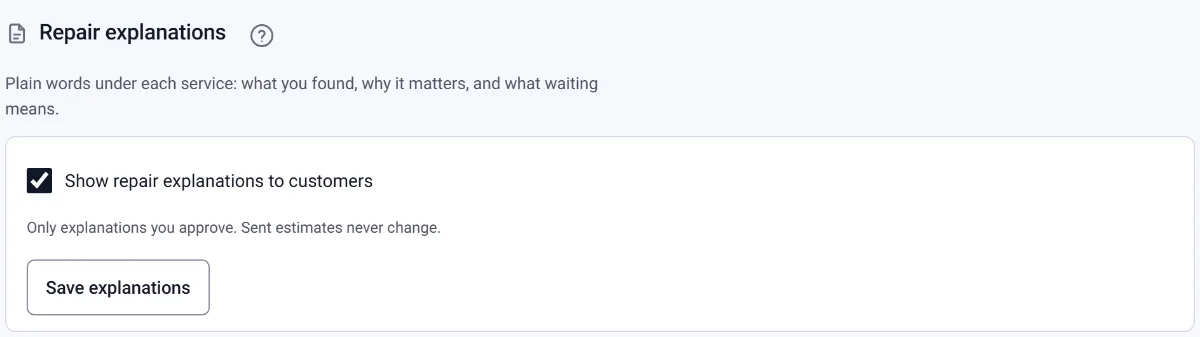
Step 2: Tick or untick the box
Show repair explanations to customers decides whether new estimates carry them.
Step 3: Press Save explanations
Press Save explanations. Sent estimates never change.
It is on for every shop. The switch is Show repair explanations to customers under Settings → Estimate & invoice look → Repair explanations. Off, new estimates carry no explanations; you can still write and approve them, and the card says Customers don't see explanations. Turn them on in Estimate & invoice look.