Every invoice and payment in one list
See what is still owed, what is overdue and what came in, with the totals over the table, and take a payment in one press.
For owner, service advisor · checked against the product on 2026-10-31
Find an invoice and take its payment
Step 1: Pick a tab
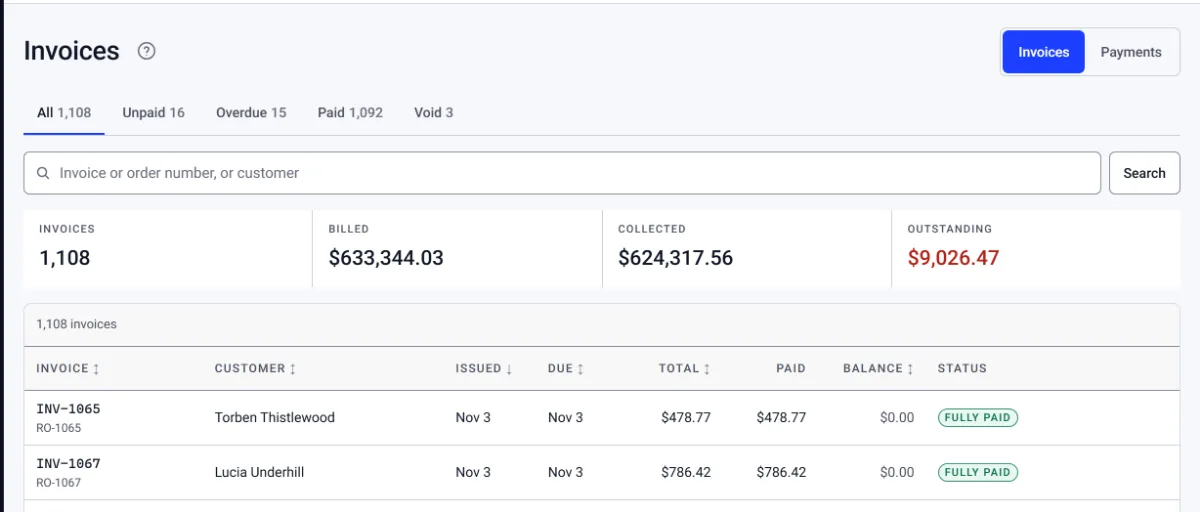
Open Invoices and press Unpaid, Overdue or Paid.
Step 2: Search for one
Type an invoice or order number, or a customer, in the search box.
Step 3: Take the payment
Press Take payment on the row. It opens that order's payment.
Open Invoices. The tabs ask the counter's questions: Unpaid, Overdue, Paid and Void, each with its count. Overdue means the due day has passed; a bill due today is not overdue yet. Paid and unpaid are read off the money, so a refund puts a paid bill back under Unpaid.
Above the table, Billed, Collected and Outstanding add up the whole tab, not just the page you are on. Deposits count as collected. Demo and practice records are never in these figures. An owed row has Take payment, which opens that order with New Payment already open on that bill.
Press Payments beside the title for every line of money in and out, newest first, with Refunds and Deposits as their own tabs and Taken, Refunded, Tips and Net over the table. Nothing on this page changes a payment; a correction is a refund on the order.